Brain Timeline
The Timeline is the activity feed of your Second Brain. It shows everything that's happened on your project in reverse chronological order — diary entries, bug fixes, architecture decisions, new patterns, and more.
Think of it as your project's commit history, but for knowledge instead of code.
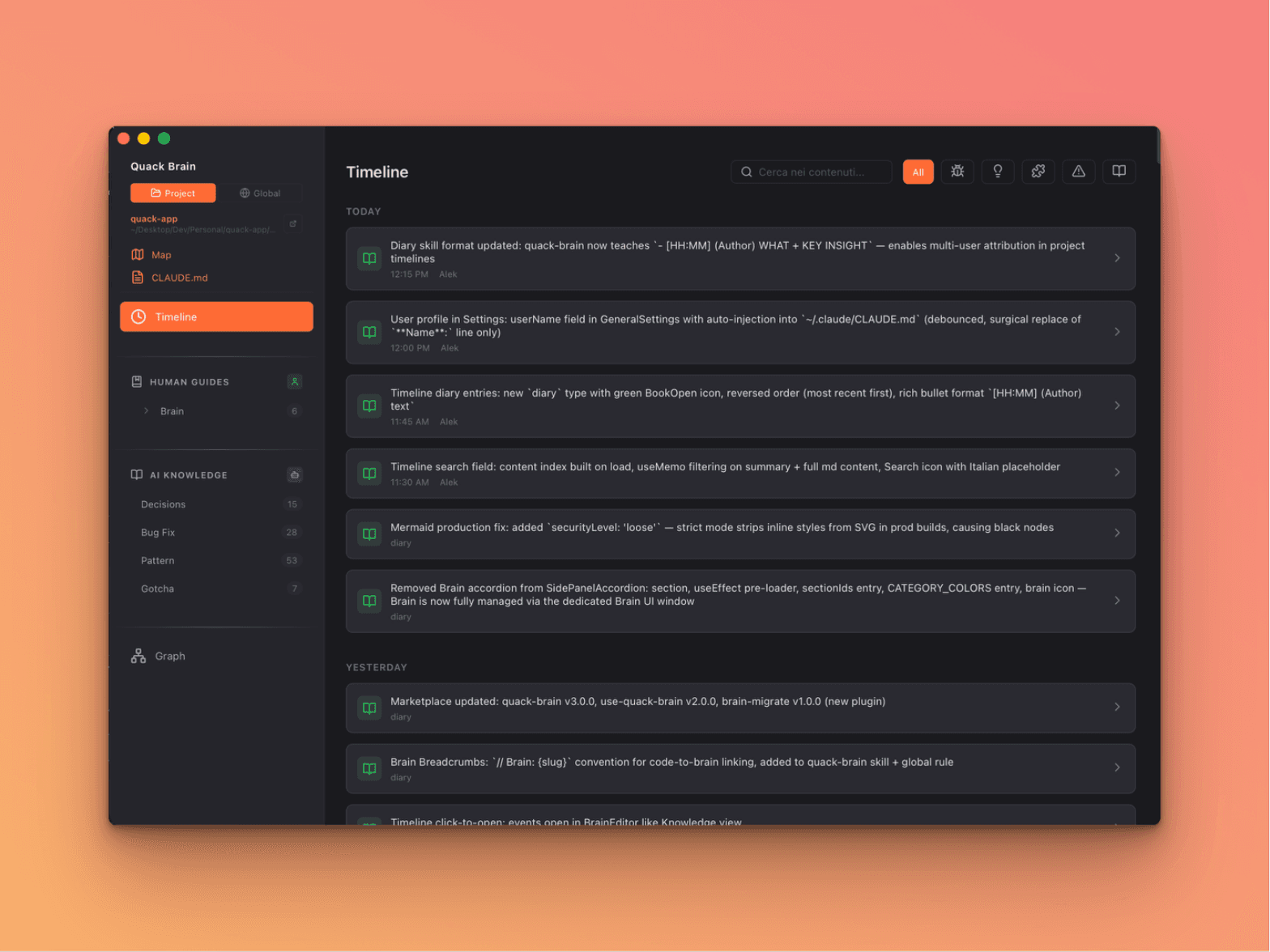
What You See
The Timeline displays events grouped by date:
- TODAY — What happened today
- YESTERDAY — Yesterday's activity
- THIS WEEK — Recent events within the last 7 days
- Older dates — Shown as "February 14, 2026" format
Each event shows:
- Type icon: Color-coded by category (green diary, red bug, blue decision, etc.)
- Summary: The main description of what happened
- Time: When it happened (if diary entry has
[HH:MM]format) - Author: Who did it (e.g., "Alek", "Marco", or "brain" for AI-generated entries)
Event Types and Colors
| Type | Icon | Color | Source |
|---|---|---|---|
| Diary | Book | Green | diary/YYYY-MM-DD.md bullet points |
| Bug Fix | Bug | Red | bugs/*.md entries |
| Decision | Lightbulb | Blue | decisions/*.md entries |
| Pattern | Puzzle | Cyan | patterns/*.md entries |
| Gotcha | Warning | Amber | gotchas/*.md entries |
| Note | File | Gray | Activity log entries |
| Task | Check | Green | Activity log |
| Feature | Sparkle | Orange | Activity log |
| Deploy | Rocket | Purple | Activity log |
Searching Through Content
At the top of the Timeline, there's a search field (with a magnifying glass icon). Type any keyword to filter events.
The search is powerful — it doesn't just match titles. It searches through the full content of every markdown file referenced by the timeline events. So if you search for "memory leak", you'll find not just diary entries that mention it, but also bug fixes whose detailed description contains those words.
How it works under the hood: When the Timeline loads, it builds a content index of all Brain entries in memory. Search filtering happens instantly with useMemo — no re-reading files on every keystroke.
Tip: Combine search with type filters for precise results. For example, filter to "Bug Fix" and search "WebView" to find all WebView-related bugs.
Type Filters
Next to the search field, you'll see filter buttons — one for each event type that has at least one entry. Click a filter to show only events of that type.
- All: Shows everything (default)
- Individual type buttons: Filter to just diary, bugs, decisions, etc.
Filters are dynamic — if your project has no gotchas, the gotcha filter button won't appear. This keeps the UI clean and relevant to your actual content.
Clicking Events
Click any event to open its source file in the Brain Editor. This works seamlessly:
- Click a diary event → opens the diary file for that day
- Click a bug fix → opens the full bug report with problem, solution, and key insight
- Click a decision → opens the Architecture Decision Record
This makes the Timeline a great entry point for navigating your knowledge. See something interesting? Click it to read the full story.
Multi-User Attribution
The Timeline supports multi-user tracking — essential for teams.
How It Works
Each diary bullet can include a time and author:
markdown- [14:30] (Alek) Fixed the login flow: was missing await on async auth check
- [15:00] (Marco) Added rate limiting to the API: 100 req/min per user
- [16:45] (Alek) Refactored settings store: split into domain-specific slices
The Timeline parses this format and shows each entry with the correct author name.
Setting Up for Your Team
Each team member needs to:
- Open Quack Settings > General
- Set their Display Name (e.g., "Alek", "Marco", "Sara")
- Quack auto-injects this name into
~/.claude/CLAUDE.md - The AI agent reads it and uses it in diary entries
The auto-injection is surgical — it only updates the **Name**: line in your CLAUDE.md, never overwrites other content.
Backward Compatibility
The Timeline supports both the new format and the old format:
| Format | What happens |
|---|---|
- [14:30] (Alek) description | Shows time + author |
- description | Shows as diary entry with no time, author shows as "diary" |
Existing diary entries work fine — you don't need to retroactively update them.
Data Sources
The Timeline merges events from three sources:
1. Diary Files
Files in documentation/diary/YYYY-MM-DD.md. Each bullet point becomes a separate timeline event, with the most recently added bullet appearing first.
2. Brain Knowledge Entries
Files in documentation/bugs/, decisions/, patterns/, gotchas/. Each file becomes one event, dated by its created frontmatter field.
3. Activity Logs (JSONL)
Agent activity logged in .activity.jsonl files. These include tasks completed, features built, deploys, and refactors.
All three sources are merged and sorted by date (most recent first) to create a unified activity feed.
Tips
- Start your day with the Timeline — see what happened yesterday and what's pending
- Use search for "did we ever..." questions — "did we ever fix the dropdown z-index?"
- Filter by type to review — filter to "Decision" when reviewing architecture choices
- Click to explore — the Timeline is the fastest path from "what happened?" to "here are the full details"
- Check author attribution — know exactly who worked on what, especially in team projects
Next: Brain Migration — Migrate from older knowledge structures to Brain v2
Previous: Brain UI — The visual knowledge browser